
Keyboard Review? Really?
Recently, I’ve taken the plunge and returned to blogging about my personal projects. Coupled with my full-time role as a Software Developer, it’s clear I’ll be clocking in even more screen time. Recognising this, I’ve made it a priority to arrange my home workspace more ergonomically.
For us developers, having a good keyboard is essential, as we spend 10+ hours a day typing. Previously, I have used Ergonomic Keyboards from Microsoft, such as the Microsoft Surface Ergonomic Keyboard, the wired Microsoft Ergonomic Keyboard, and the Microsoft Wireless Comfort Desktop, and was satisfied with all of them. So, I decided to return to an ergonomic keyboard once again.
But I quickly discovered that Microsoft is gone from the keyboard game- why, I wouldn’t know, because it is hard to imagine them not being profitable in this field. Yes, they do sell the Surface Keyboard, but it is not an ergonomic keyboard; it is a classical one, like the Apple Keyboard, for example.
So, I started researching other options – and a person could really get lost in all the possibilities. There is also a risk of buying a “spaceship keyboard” with a steep learning curve, so I decided to go with the more familiar “wavy” look and feel. As I have previously used Logitech’s MX Keys Keyboard and was pretty satisfied with it, I decided to go with Logitech again. So, I bought the ERGO K860, and here’s my review in case it helps someone decide for or against it.
Now, for those of you who don’t know, I am not a traditional content creator. I don’t plan to make money with any of this; I wish to give something back to the IT Community. I bought this with my own money, and I believe I can be unbiased. The only bias I might have is that I am justifying my own buying decisions to myself.

Straight to the Point
Logitech’s ERGO K860 is a very well-crafted, surprisingly comfortable ergonomic keyboard that makes typing much easier, yet it does not require a long adjustment period, at Least in my opinion.
PROS
- Well-built, curved, ergonomic shape
- Very comfortable wrist rest
- Adjustable feet for negative lift in 2 separate heights
- Multiple devices supported
- Keys can be reprogrammed using Logitech Options+ software
CONS
- Takes up a lot of space
- No rechargeable battery
- No backlighting
There you have it. If you’re interested in details, however, then keep reading.
Detailed Review
Ergonomics
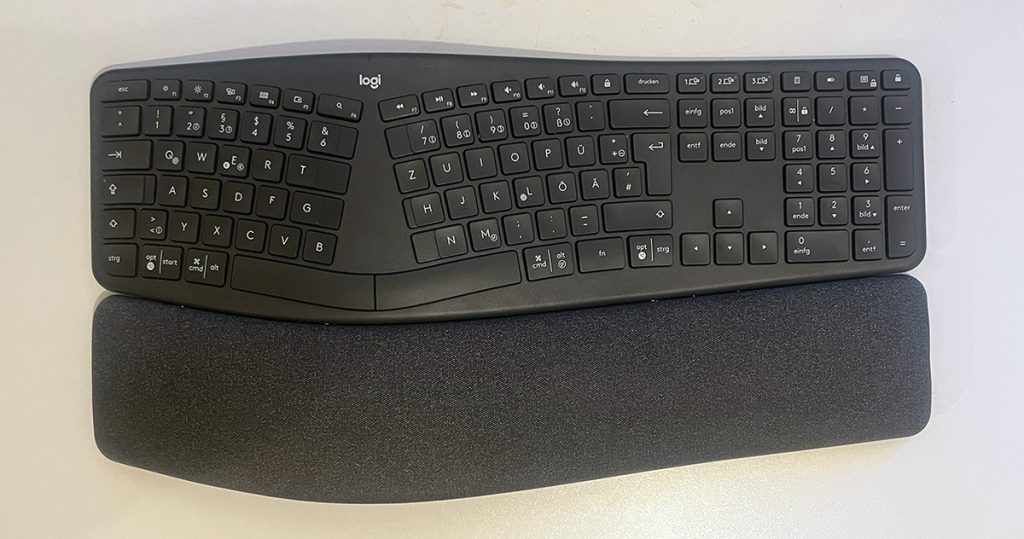
As you can see, the keyboard is curved and elevated. As far as I understand, the reasoning is to promote a natural posture while typing. Again, I am not an ergonomist, and this is not medical advice. Still, from what I understood, the problem with the “standard “keyboard is that you not only rotate your wrists when typing to adjust to the flat surface, but you also have to keep your wrist elevated to type.
This keyboard attempts to solve both of those problems by providing you with a more natural position to type, where your wrists do not have to do as much work – they sit there, and your fingers are doing most of the work. Speaking of the wrist rest, it feels incredibly comfortable, thanks to its memory foam and, according to Logitech, stain-resistant fabric. It is just so much more relaxed than keeping your hands directly on the table.

The palm rest is also adjustable; there are two sets of lift legs, which enable you to adjust the lift by two different degree settings – lower and higher to create a negative tilt and possibly make the keyboard even more comfortable.
What could be problematic is that the wrist rest is not detachable; it’s a single piece, which limits flexibility and makes this keyboard very hungry for desk space. I guess I do understand the reasoning, as it is meant that the keyboard and the wrist rest work together to give you an optimal experience, but I would still have liked the possibility to detach it. This is what is to be expected from a prominent manufacturer such as Logitech – it is not meant to be as flexible as custom or ergonomic mechanical “spaceship” keyboards, but it is more mainstream. I guess that’s OK, it’s a safe choice. Just make sure you have enough space on your desk, as, once again, it is not a small thing we have here.
What worries me more is that, since the wrist rest is one with the keyboard, it’s impossible to replace, and I wouldn’t bet on it not wearing out before the keyboard itself stops working, which, of course, means you might have to replace the whole keyboard.
Learning Curve
It did not take me too long to adjust to the typing experience, but this might not be the case for you. For one, as mentioned above, I already have experience with ergonomic keyboards and know where all the keys are, even when using the various keyboard layouts That Operating Systems offer. I do this because I must type in English, German, and my native Croatian, and, as I said, I mostly know where the keys are, but I am not a complete touch-typist. So, it wasn’t too difficult for me to adjust to the ERGO K860.

However, if you tend to type with two fingers only while looking at the keyboard, the learning curve might be a bit steeper for you. Another thing to mention, that you might not even be aware of, is that people who tend to type primarily with 2 fingers only do not necessarily always hit the same key with the same finger – for example, sometimes they hit the letter B with the right hand and the letter N with the left. This kind of flexibility is lost chiefly as some keys are farther apart, so it is not practical, for example, to hit the N key with the left hand. So, yes, for certain people there will be a learning curve. But the trade-off is ergonomics. With this keyboard, your hands will be in a good posture, since it is natural to keep them on the palm rest and make only minimal finger movements. I do believe, however, that the slight loss of flexibility is more than compensated by the better posture – and who knows, it might even make you a better typist.
Typing and Development
To be completely open and honest, I do not know how to review the typing experience. The keys are low profile, and the keyboard is not mechanical. But I do find that the keys still have some travel distance, more than a laptop keyboard, for example, so you do have a “tactile experience “. The feeling is like the Logitech MX Keys, except these do not have that small well in the middle where your fingers would go on the MX Keys. But I guess that wouldn’t really be in the service of ergonomics. I found the experience amazingly comfortable and enjoyable.

However, if you have smaller hands but adore keyboard shortcuts, I feel like I should warn you that, because of the nature of the split design, some key combinations, like for example CTRL+N, are not so easy to reach with one hand, especially if you use the left-hand pinky and index finger method while keeping one hand on the mouse. The same goes for CTRL+Z and CTRL+H, which are not so easy to press with only the left hand. Yes, this might be nitpicky, but if you have smaller hands, you could be surprised at how often the thought “this used to be much easier” occurs to you. Yes, go ahead, say it. I use the mouse too much. But if you are like me, be warned that this could take some adjusting. However, if I look at the whole, I do feel that this slight inconvenience is worth the lower wrist action required.
What might be a deal-breaker for you, though, is the lack of backlighting. Now that I know where the keys are, and because of some vision problems, I always work in a well-lit room, so this does not bother me, even if it would be nice to have. However, if you type mostly with two fingers and tend to work in the dark as well, the lack of backlighting combined with a predicted steeper learning curve for people who do not at least roughly know where the keys are might prove problematic. In this case, I suggest you buy it from somewhere with a generous return policy, or even find a retail store that would let you test it there before buying.
Batteries and connectivity
This keyboard does not come with a rechargeable battery. Instead, it is powered by two AAA batteries. Logitech claims it will provide enough power for two full years of use. I have my doubts, I must confess, as I am not sure whether they calculated it using the 10+ hours per day formula or an average of 4 hours a day or so. But if you think about it, I tend to believe these batteries will last a long, long time, since the keyboard connects either via the Logi Bolt connector or Bluetooth Low Energy, and it does not have backlighting.

You can connect the keyboard to up to three devices and switch between them with a single button press. If you have used Logitech keyboards or Mice before, especially the MX series, this functionality should be remarkably familiar to you. To me, this has always been one of the best Logitech features. The keyboard comes with both Windows and Mac symbols, both printed on the keys, and the OS specific keys work automatically when switching to a particular device without the need to activate any extra switch. I have tried it on both Mac and PC and can confirm it works great on both systems.
Software
You can download the Logitech Options+ App, which enables you to reprogram all the function buttons. The software also supports programming the buttons per app, so, for example, the lock button can be used for Pasting in Adobe Photoshop if you choose to reprogram it that way.

If you have a Logitech mouse that supports Logi Flow, a feature that lets your cursor switch between computers seamlessly, the keyboard will follow the mouse, so you don’t have to switch devices manually.
I do own a Logitech ergonomic mouse as well, but I didn’t test this feature myself, as honestly, I never felt a need for it. But I guess if you ever need to transfer the cursor or even files between the computers, you can give it a shot. I wouldn’t, however, buy this keyboard or even a Logitech mouse just for that reason, because as I understand it, both computers need to be in the same LAN. I wouldn’t expect the VPN connection to your company to make this unusable between your private and work computers, and I wouldn’t expect it to be blocked by your company’s policy. Even so, it’s good to know it’s there, as it could be that your use case fits, for example, if you have a Mac and a PC, both privately owned.
Conclusion
This keyboard is for anyone looking to reduce strain on shoulders, arms, and wrists while typing. While I do believe most people will have no trouble adapting to it, some, mostly those who type exclusively with two index fingers and must always look at the keyboard, might experience a steeper learning curve.
I do feel that this keyboard is worth it, and for most people, it will be a fantastic choice. So, if you can overlook the fact that it takes up plenty of desk space and lacks backlighting, I would strongly recommend you try it.